
Download ClipGrab – Free Video Downloader, Converter & Search Tool
Overview
ClipGrab is a lightweight, free video downloader that has earned a reputation for being one of the most convenient tools for pulling multimedia content from the web. Unlike browser‑based extensions, ClipGrab runs as a stand‑alone application, which means it works independently of any particular browser and can monitor your clipboard for URLs automatically. As soon as you copy a video link—from YouTube, Vimeo, DailyMotion, Clipfish, Sevenload, or dozens of other streaming sites—the program detects the address, prompts you to choose a format and quality, and begins the download without any extra clicks.
This “clipboard monitoring” feature speeds up the workflow for power users who grab multiple videos in a short period.
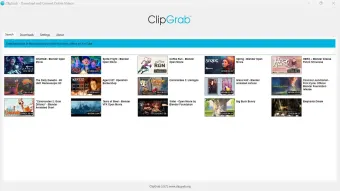
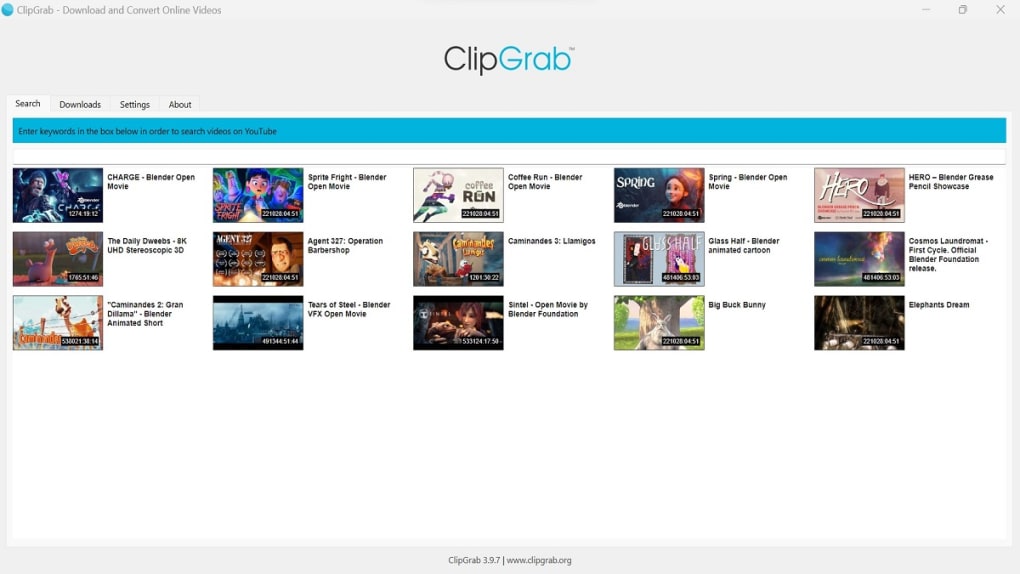
What sets ClipGrab apart from other free downloaders such as YTD Video Downloader or Total Video Downloader is its integrated search function. You can type a keyword directly into the app, and ClipGrab will return up to twelve relevant video results, allowing you to start a download without ever leaving the program.
Although the search result limit is modest, it still saves valuable time for casual users.
In addition to downloading, ClipGrab includes a built‑in converter that supports a range of audio and video formats. Whether you need an MP3 for a podcast, an OGG file for a Linux media player, or an MPEG‑4 video for your mobile device, ClipGrab can convert the file on the fly, adding ID3 tags where appropriate.
The ability to choose lower resolutions also helps you conserve disk space when you only need a quick preview or a low‑bandwidth version.
ClipGrab runs on macOS, Windows (7, 8, 10) and Linux, making it a versatile choice for cross‑platform users. A premium version expands the feature set with advanced editing tools, but the free edition already provides a robust set of capabilities for anyone who wants a hassle‑free way to download and convert videos for offline viewing.
Key Features That Make ClipGrab Stand Out
- Automatic clipboard detection – copy a URL and the download starts instantly.
- Integrated video search – type keywords and get up to 12 results without opening a browser.
- Support for more than 20 streaming sites, including YouTube, Vimeo, DailyMotion, Clipfish and Sevenload.
- Built‑in converter with output options: MP3, MP4, WMV, OGG Theora, OGG Vorbis, MPEG‑4.
- Quality selector – choose from low, medium, high or custom resolutions before download.
- Audio‑only extraction – perfect for music videos, podcasts, or saving storage space.
- Batch processing – queue multiple URLs and let ClipGrab handle them sequentially.
- Cross‑platform compatibility – native builds for macOS, Windows 7/8/10, and Linux distributions.
- Simple UI – minimal learning curve, ideal for beginners and tech‑savvy users alike.
- Free core version – no hidden fees, with optional premium upgrade for advanced editing.
Why These Features Matter
The combination of clipboard monitoring and an integrated search engine reduces the number of steps needed to acquire a video. Traditional downloaders often require you to open a browser, paste a link into a field, and click “download.” ClipGrab eliminates those extra clicks, which is especially valuable when you’re working on a research project, creating a playlist, or curating a media library. The built‑in converter also removes the need for a separate application like HandBrake or FFmpeg. By handling format conversion internally, ClipGrab saves you time and keeps the workflow tidy.
For users on limited bandwidth or storage, the quality selector is a practical tool. You can quickly grab a 480p version for a quick preview or a full‑HD file for archival purposes. The audio‑only extraction mode helps you create a music library without the extra video data, which is a boon for portable devices with limited capacity. Overall, ClipGrab’s feature set is thoughtfully aligned with the everyday needs of video enthusiasts.
Installation, Setup, and Everyday Usage
Step‑by‑Step Installation Guide
- Visit the official ClipGrab website (or a trusted software repository) and download the installer for your operating system.
- For Windows users, run the
.exefile and follow the wizard – accept the license agreement, choose an installation folder, and click “Install.” - macOS users will receive a
.dmgfile; open it, drag the ClipGrab icon into the Applications folder, and launch the app. - Linux users can typically install via package managers:
sudo apt‑get install clipgrabon Debian/Ubuntu orsudo dnf install clipgrabon Fedora. - After installation, open ClipGrab. The first launch may prompt you to allow network access – grant permission so the program can fetch video streams.
Everyday Usage – Downloading a Video in 3 Simple Steps
- Copy the video URL. Navigate to your favorite site (YouTube, Vimeo, etc.) and copy the address from the browser’s address bar.
- ClipGrab detects the link. The application’s clipboard monitor will instantly highlight the URL in the “Download” field.
- Select format and quality. Choose MP4 for video or MP3 for audio, pick a resolution (e.g., 720p), and click “Grab this clip!” The download begins, and you can monitor progress in the status bar.
ClipGrab is compatible with macOS 10.12 and later, Windows 7/8/10 (both 32‑bit and 64‑bit), and major Linux distributions such as Ubuntu, Debian, Fedora, and openSUSE. The application uses native libraries for each platform, ensuring smooth performance without the need for additional runtime environments.
Tips for Power Users
- Enable “Start download automatically” in the preferences to eliminate the final confirmation click.
- Use the batch queue feature to paste multiple URLs at once; ClipGrab will process them sequentially.
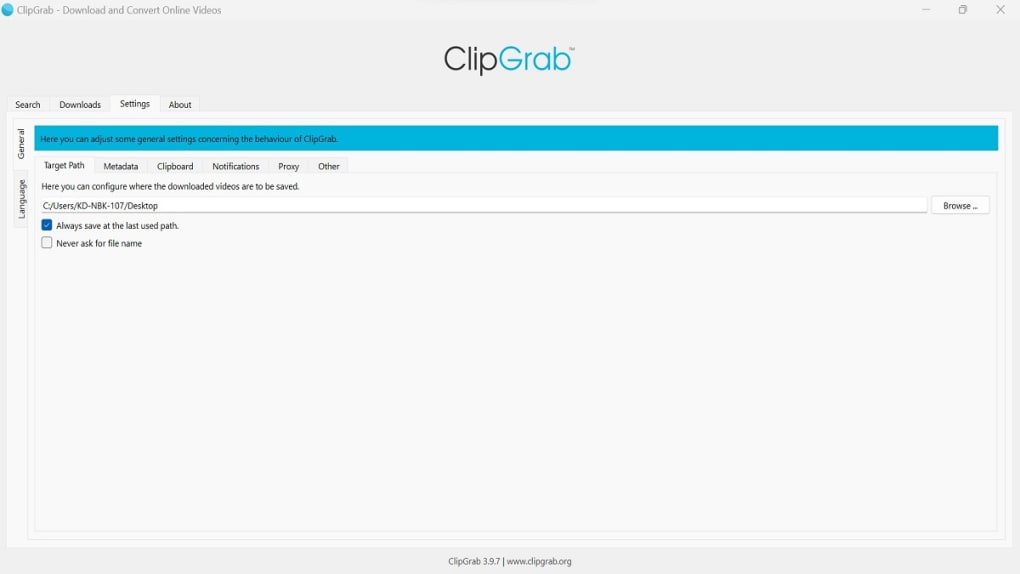
- Adjust the default output folder in settings so all downloads are organized in a single library.
- For Linux, consider creating a desktop shortcut by dragging the ClipGrab icon from the application menu to your desktop.
Pros and Cons – A Balanced Look
Pros
- Free core version with no hidden fees.
- Automatic clipboard monitoring speeds up downloads.
- Built‑in converter supports popular audio and video formats.
- Cross‑platform support (Windows, macOS, Linux).
- Integrated search reduces the need to open a web browser.
- Batch download capability for handling multiple files.
- Lightweight UI – low system resource consumption.
Cons
- Search results limited to 12 items per query.
- No native support for 4K resolution downloads (limited to 1080p).
- Occasional compatibility hiccups with newly updated streaming sites.
- Premium version required for advanced video editing tools.
- No built‑in scheduler for timed downloads.
Overall Rating: 4 out of 5 stars – ClipGrab delivers a solid, free solution for everyday video downloading and conversion, with a few minor limitations that power users may notice.
Frequently Asked Questions (FAQ)
Is ClipGrab completely free to use?
Yes, the core version of ClipGrab is free and includes downloading, format conversion, and basic batch processing. A premium upgrade is optional and adds advanced editing features.
Can ClipGrab download 4K videos?
The free version supports up to 1080p resolution. For 4K downloads you would need a specialized downloader or wait for a future update that expands resolution support.
What file formats can ClipGrab convert to?
ClipGrab can convert videos to MP4, WMV, OGG Theora, and MPEG‑4, and audio to MP3, OGG Vorbis, and WAV. It also adds ID3 tags when exporting to MP3.
Is ClipGrab safe from malware?
When downloaded from the official website or reputable repositories, ClipGrab is free of malware. Always verify the source before installation.
How does the clipboard monitoring work on macOS?
On macOS, ClipGrab runs a background service that watches the system clipboard. When it detects a URL from a supported site, it automatically fills the download field, ready for you to confirm format and start the download.
Conclusion – Should You Download ClipGrab?
If you’re looking for a reliable, free tool that can download videos from a wide range of sites, convert them into multiple formats, and even help you locate videos without leaving the app, ClipGrab is a strong contender. Its automatic clipboard detection and built‑in converter streamline the entire process, making it ideal for both casual users who want a quick download and power users who manage large media libraries. While the search limit and lack of 4K support are notable drawbacks, they do not outweigh the convenience and feature set offered at zero cost.
Ready to simplify your video‑downloading workflow? Download ClipGrab now and start building your offline media collection instantly. Whether you’re on Windows, macOS, or Linux, the program’s lightweight design ensures a smooth experience without the bloat of larger suites. Give it a try, and you’ll quickly see why ClipGrab remains a favorite among video‑download enthusiasts.